Using the AI Invoice Feature
The AI invoice feature in Deacom matches up invoices submitted to existing Deacom PO’s that have been received but not yet invoiced. Note that this feature does not support Expense PO’s or un-received PO’s. These types of POs will fail to match.
Configuration
Prior to using the AI Invoice feature, the following configuration steps or master data setups are required. In most cases, companies will have already completed some of these setup steps during the implementation process.
Master Data
- Chart of accounts should be in the system at this point.
- Vendors must be entered into the system and validated.
Security
Security specific to the new Accounting > Invoice Entry and Accounting > Invoice Reporting menu options are listed below:
- Accounting – invoice entry – Access to menu
- Accounting – invoice reporting – Access to menu
- Accounting – edit accounting invoices
- Accounting – post accounting invoices
API Server
The API server will need to be up and running the system. This process requires access to the internet to reach our AI API’s. To validate the API server is up and running, perform a login call via API. This will validate the API credentials in system, and ensure the system’s URL is correct in the API credentials.
API Profile
Once purchased, credentials for AI invoicing will be supplied by license delivery. The credentials will be used to setup and API profile (via System < Maintenance > API Profiles) to connect the system to the AI API’s. Test/Sandbox mode should not be used.
Note: Customers will need to have the Deacom API setup and running.
Example API Profile:
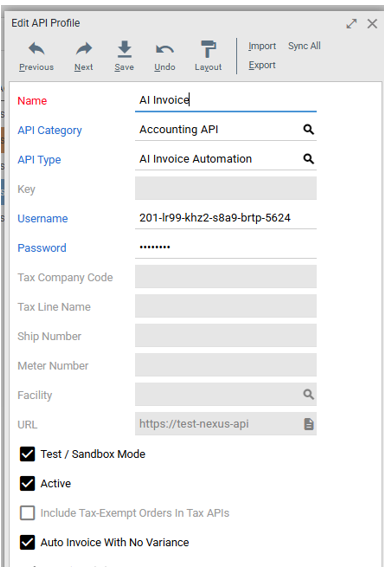
Note: Auto Invoice With No Variance field.
- The system can match the invoice to a received not invoiced PO with a high confidence match over 75%. This matches on the PO number and vendor name.
- The total of the PO in Deacom matches the total of the invoice
- The due date on the invoice matches what we expect. Invoiced date from the invoice + terms from PO to calculate our expected due date.
- All the lines on the invoice could be matched to PO lines, and the invoice quantity and price for the line matches the received quantity, and price on the PO.
Accounting > Options > AP tab
- AI Invoice Doc Cat – Used to select the appropriate Document Category. When invoices are matched to PO’s through the AI invoice process they will be attached in Deacom. This document category will be used when attaching the invoice to the PO.
AI Invoice Source File
This does not require any configuration by the user. The system will automatically generate a file in the Deacom production folder which contains status information of processing, success, and failed.
- Processing – Invoices submitted to the AI process but not yet done.
- Success – Invoices where a PO was found in Deacom and the invoice was attached.
- Failed – A po could not be found in Deacom. These will need to be reviewed by a person.
Cloud customers may need FTP access if they wish to open the file directly.
Invoice Form changes
The Invoice form, available via Purchasing > Invoice, has been redesigned to support the AI invoice process. The following fields are now available on the header section of the Invoice form.
- Receipt Balance
- Terms Date To Pay
- AI Invoice Summary
Lines will now be visible on the invoice form itself, and the adjustments button has been removed from the form.
- Freight adjustments will now be added as a line immediately. After typing an amount in the freight charges field, and tabbing out the freight account selected will be used to add the line.
- There is now a Post and Save button. Users can enter invoice data and save it to review later or have another user review and post. Note adjustments will change the PO value so the sub ledger will be out of balance when invoice data has been recorded but not yet posted.
- A new security (referenced above ) to post invoices with adjustments has been added. This can be used to allow a user to enter an invoice but prevent them from posting if the invoice doesn’t match. Already existing controls like max PO adjustment are still applied.
- When editing lines the invoice quantity and invoice price fields will be used to record variances. Lines can still be added for non-stock parts as before in the adjustments form.
- When line level variances are recorded a separate adjustment line will be added, which is linked to the line that caused the adjustment.
Purchase Order Entry form changes
- A new field "AI Invoice Summary" has been added to the General tab of the Purchase Order header. This field displays invoice data when the AI invoice process returns a PO to invoice match. When there is a match the invoice document will also be attached to the PO.
- Only enabled (and visible) if AI Invoicing is enabled in the system by creating an AI Invoice API Profile in the system.
Invoice entry recommendations for matching
- For the most success in matching, it is advised to have the full Deacom PO number on the invoice document.
- For auto-invoicing exact matches the vendor invoice should include both the invoice date, and the date the invoice is due.
- For auto invoice with no variance to be successful:
- Vendor name in Deacom will need to be similar to the vendor name found on the invoices.
- Invoice Date
- The system uses the invoice date and the terms on the PO in Deacom to calculate the date we expect the invoice to be due.
- Invoice Due Date
- The calculated due date needs to match the Invoice due date for auto invoice to work.
- There can be no line quantity or price variances.
- There can be no extra lines on the invoice.
Invoice data populated by AI
When a user opens an invoice on the Invoice form that the AI populated, the following are set:
- The submitted invoice is attached under View Docs.
- The Invoice Amount/Net To Pay will match what the invoice states.
- Adjustments will be entered in the Adjustments field, if needed, to accurately reflect invoice details.
- The Vendor Invoiced Date field and the Date To Pay field will display the corresponding dates from the invoice.
- The Terms Date To Pay is the calculated date based on the invoice date and the terms on the PO in the system.
- The AI Invoice Summary field will display a summary of the information detected by the AI.
- On the Invoice lines,
- The Invoice Quantity and Invoice Price will populate from the invoice.
- Variance columns will indicate any differences between invoice data and system expectations.
Tip: The AI Invoice process automatically attaches the original vendor invoice to the purchase order when it matches an invoice to a PO. Users can click the View Docs button to open and review this attached invoice while reviewing the AI-populated invoice data.
Process
Submit
- Purchasing – Invoice
- Click AI Invoice link button at the top of the form.
- Select the file chooser for 1 file, or the folder to select an entire folder for batch processing. A maximum of 50 files are allowed per request. If more than 50 are selected, users will be prompted. User can re-select the same folder, the system will not take files/invoices that have already been picked.
- Prompt that invoices have been submitted.
The AI process will run in the background. Users can do other things while waiting for the process to be completed.
Review
To review and post invoices that have been populated by the AI process.
- Navigate to Purchasing > Invoice.
- Set the Invoice Status field to ‘Not Posted’
- Optional, but recommended. Set the Inv Entered By field to "All"
- Click the Show Orders button
All of the orders returned here have had invoice data populated against them but have not yet been posted.
- Continue to view each one to validate the data has been entered correctly and then post. Make any needed changes.
- There is an AI summary field that outlines discrepancies the AI found when populating the data.
- The invoice document will be attached to the PO, and can be opened from the invoice form.
Users can also use the "Sync" report for the AI Invoice API profile in System > History/Performance to see failure for invoice files.
Reporting
Submit Reporting
- In System > History/Performance there is a report type named ‘Sync’. Use this and select the API profile used for AI invoicing to report on success and failures when matching up documents.
- Review the failed folder in the AI invoice source folder for any we were unable to find matches for. Without a match we have nowhere to put this so it can’t be found in system.
Variance Reporting
In Purchasing order reporting there is an invoice variance report. This will show all PO lines with the PO price, and received quantities compared to the invoice price and quantities. Adjustment lines linked to PO lines due to price/quantity differences will not be shown as the invoice data is shown on the on line in the report. Any adjustments for freight or manually added will display.